
You've got a useful interview, vlog, lecture, or field recording, but the dialogue is buried under traffic, fan hum, hiss, room echo, wind, or uneven levels. The problem isn't just that the audio sounds rough. Viewers may miss words, lose concentration, or abandon the video because they're working too hard to follow the speaker.
The best app to remove background noise from video depends on the recording and the workflow around it. A browser tool may be ideal when you need a clean result quickly. An integrated editor makes more sense when the video is already on a timeline. A dedicated restoration suite wins when clipping, reverb, competing voices, or repeated processing have damaged the source.
This comparison focuses on the practical differences that matter: cleanup target, speech intelligibility, workflow friction, control, compatibility, batch processing, available pricing information, typical use case, and limitations. The goal is not to crown one universal winner, but to match each tool to the situation where it performs best. For a deeper look at preparing spoken material, see this guide to studio dialogue editing.
Table of Contents
- 1. ClearAudio
- 2. Adobe Premiere Pro
- 3. DaVinci Resolve Free and DaVinci Resolve Studio
- 4. Final Cut Pro
- 5. iZotope RX 11
- 6. Descript Studio Sound
- 7. VEED Clean Audio
- 8. Kapwing Online Background Noise Remover
- 9. Auphonic
- 10. Boris FX CrumplePop
- Top 10 Video Background-Noise Removal Tools, Quick Comparison
- Match the Tool to the Recording
1. ClearAudio
ClearAudio is the strongest starting point when you want browser-based dialogue cleanup without building an audio-processing workflow from scratch. Upload a video or audio file by dragging it into the interface or browsing from your device, then specify what should remain, such as speaker, speech, dialogue, vocals, music, or background music. That prompt-driven step is more useful than a generic “remove noise” button because it frames the job around the material you need to protect.
The workflow suits a talking-head video, interview, phone recording, screen capture, or field report. ClearAudio can target noise, hum, hiss, room echo, and competing layers, then produce a cleaner result that can return to the video timeline. Its quality modes range from Small for quick processing and Base for a balance of speed and quality to PRO Large and PRO Large-TV, with the latter supporting video files and the most demanding processing. The site also offers a free 10-second preview without requiring sign-in, which makes it practical to test a difficult clip before committing to a longer workflow.
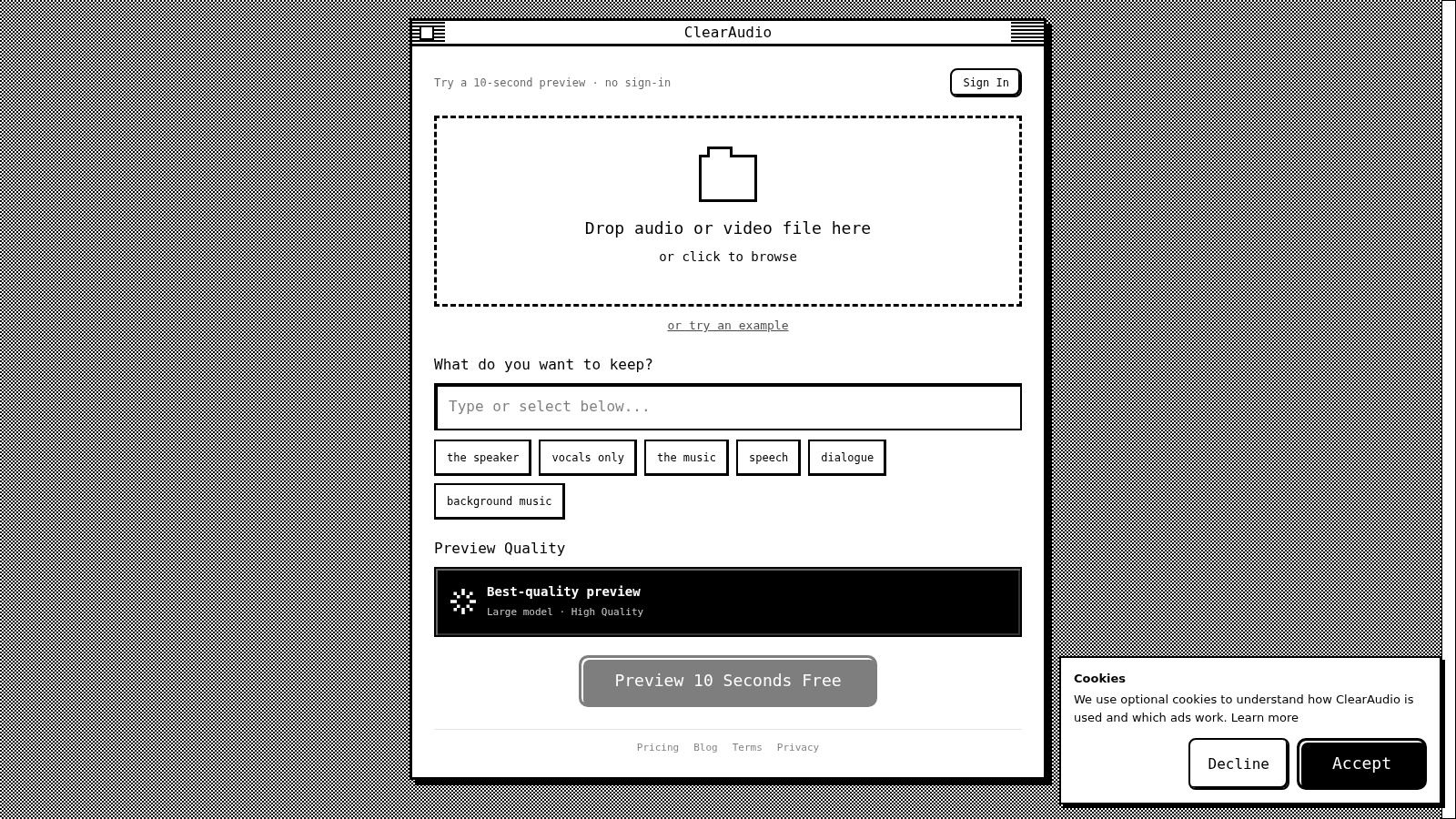
A practical ClearAudio workflow
For a noisy interview, upload the original video, choose dialogue or speech as the target, and begin with the balanced mode. Preview the result against the untreated file. If the voice remains clear and the background is less distracting, export the cleaned track and replace or mix it beneath the original video in your editor.
Advanced users can move beyond the simple prompt and adjust processing more deliberately. That matters because aggressive denoising can make speech sound thin, metallic, or robotic. Research on low-latency deep-learning noise reduction found that outcomes differed by listener group, with hearing-impaired listeners receiving a significant benefit while normal-hearing listeners experienced a median deterioration in speech reception threshold. The Frontiers study supports a useful product lesson: the strongest suppression setting isn't automatically the most intelligible result.
Pros
- Prompt-driven workflow: Choose what to keep instead of guessing which denoising controls to adjust.
- Video support: PRO Large-TV is designed for video-file processing.
- Fast evaluation: Preview a short result before investing time in a full export.
- Flexible depth: Beginners can use the guided flow, while professionals get more granular control.
- Stem separation: Dialogue and other audio layers can be isolated for editing, remixing, or replacement.
Cons
- Plan details: Specific prices and plan limits aren't provided in the supplied product information, so check the current pricing page before choosing a tier.
- File-based workflow: It's designed for uploaded files, not advertised as a live processor for real-time recording.
- Source limitations: Severely clipped or repeatedly compressed audio may need specialist restoration after the first cleanup pass.
ClearAudio is the sensible choice when speed, intelligibility, browser access, and dialogue isolation matter more than surgical spectral editing.
2. Adobe Premiere Pro
Adobe Premiere Pro makes the most sense when your video is already being edited there and you don't want to export audio to a separate application. Its Enhance Speech tool provides a fast way to improve dialogue clarity and reduce distracting background sound, while the Essential Sound panel gives editors access to controls for noise, hum, rumble, and level matching.
That timeline integration is the main advantage. You can cut a scene, hear the result in context, and adjust the voice without managing a separate audio file. This is especially useful for YouTube edits, branded videos, interviews, and social clips where the cleanup decision depends on music, room tone, and picture timing.
Editors working with difficult material can also move the audio into Adobe Audition for deeper repair, then return the processed material through a familiar Adobe workflow. That upgrade path is more valuable than a long list of automatic features because simple dialogue enhancement and forensic restoration are different jobs.
Where Premiere works best
Use Premiere when the noise is steady and moderate, such as air conditioning, low room noise, or mild microphone hiss. Start conservatively, then listen with the music and effects restored. A voice that sounds impressive in isolation can become distracting once paired with the rest of the mix.
Enhance Speech can be too aggressive on some voices or recordings. Artifacts may appear when the source is already heavily compressed, clipped, reverberant, or processed more than once. For those cases, Audition or iZotope RX offers a more deliberate route.
A useful workflow is to duplicate the original audio before applying enhancement. Keep the untreated clip available, compare phrases rather than only pauses, and avoid judging the result solely by how quiet the background becomes. Adobe provides the Premiere Pro for AI-native creators workflow as a useful reference for editors building around the NLE.
Best fit: Editors already working in Adobe who want fast in-timeline dialogue cleanup with a clear path to Audition.
Main trade-off: Premiere minimizes app switching, but it doesn't replace a dedicated restoration suite for complex or damaged recordings.
Visit Adobe Premiere Pro for the current feature and plan details.
3. DaVinci Resolve Free and DaVinci Resolve Studio
DaVinci Resolve is a strong choice for creators who want video editing, color, effects, and serious audio work in one application. Its Fairlight page provides a full post-production environment, while Resolve Studio adds AI-based Voice Isolation and Dialogue Leveler tools for reducing ambient sound and making spoken audio more consistent.
The free version remains useful for manual Fairlight work, editing, and basic audio adjustments. The important limitation is that Voice Isolation and some other AI features are Studio-only. If your selection depends on one-click dialogue cleanup, confirm that the Studio edition includes the tools you need before moving a project into the workflow.
Resolve's advantage appears when cleanup has to be judged alongside the picture. You can isolate a noisy section, automate changes across a scene, preserve room tone, and check the result against music and effects without leaving the project. Third-party plug-in support also gives experienced users room to expand beyond the built-in tools.
The Studio decision
Resolve Studio is the better fit when voice isolation and dialogue leveling are central to the edit. The free edition is more attractive when you're comfortable with manual processing or already own compatible plug-ins. A one-time Studio license option can also appeal to users who prefer perpetual software rather than an ongoing subscription, but verify current commercial terms directly because product pricing can change.
Resolve is particularly good for documentary edits, interviews, multicamera projects, and creator videos that need more than a single audio slider. It gives you room to make localized decisions rather than applying identical treatment to every clip.
Practical rule: Use Voice Isolation to establish a usable dialogue track, then listen for artificial tails and consonant damage before increasing the strength.
Best fit: Editors who want an all-in-one NLE with a powerful Fairlight environment and optional AI isolation.
Main trade-off: The most convenient automatic cleanup requires Resolve Studio, not the free version.
See the current DaVinci Resolve product information before deciding which edition fits your projects.
4. Final Cut Pro
Final Cut Pro is the natural option for Mac editors who want simple dialogue cleanup directly inside the timeline. Its Audio inspector includes Voice Isolation, Background Noise Removal, and Hum Removal, giving vloggers, interview editors, and talking-head creators a short route from imported footage to a more focused voice track.
The workflow is deliberately uncomplicated. Select the clip, apply the relevant audio controls, and judge the result during playback. That approach works well when the recording has a clear voice and a predictable problem, such as fan noise, a low electrical hum, or general room sound.
Final Cut Pro also benefits from Apple hardware optimization, particularly for editors who need responsive playback while cutting video. The main limitation is platform access. Final Cut Pro is for macOS, so it isn't a practical recommendation for Windows-based teams or mixed environments that need the same project workflow across operating systems.
Don't confuse convenience with restoration
Final Cut's built-in controls are useful for fast cleanup, but they aren't a substitute for spectral repair. If traffic overlaps every syllable, the room has a long echo, or the microphone clipped loudly, a one-slider treatment may soften the problem without fully solving it. Some users will also prefer a third-party plug-in when the built-in controls produce a processed or unnatural vocal tone.
For a typical vlog, the efficient sequence is to remove hum first if it's obvious, apply moderate noise reduction, then adjust voice isolation while listening to the whole scene. Preserve a copy of the original clip so you can reduce the treatment if the voice loses natural detail.
Best fit: Mac creators who want reliable, quick cleanup without leaving Final Cut Pro.
Main trade-off: It offers less deep restoration than dedicated tools such as iZotope RX.
Explore the current Final Cut Pro features before choosing it for a larger team or long-term production workflow.
5. iZotope RX 11
Some recordings need more than background-noise reduction. A door slam overlaps a word, traffic changes throughout the take, a lavalier rubs against clothing, and clipped peaks make the voice harsh. iZotope RX 11 is designed for that kind of surgical repair, with modules such as Dialogue Isolate, Voice De-noise, and spectral editing tools that let you work on specific frequencies and time regions.
RX is usually a round-trip tool. Export or open the audio from your video editor, repair the problem in RX, then return the result to the timeline. That adds friction, but it also gives you visibility and control that one-click browser tools and NLE sliders can't match.
Spectral editing is the major differentiator. Instead of processing the entire clip uniformly, you can identify a narrow interference, reduce a specific event, or treat only the moment where a background sound masks speech. The available modules depend on whether you choose Elements, Standard, or Advanced, so compare the editions against your actual repair needs.
When RX earns its place
RX is the better choice when preserving the original character of the speaker matters more than processing speed. It can handle broader restoration tasks involving hiss, hum, clicks, reverb, clipping, and dialogue isolation, but it rewards careful listening and a willingness to make several small interventions rather than one extreme pass.
The workflow is slower than an AI one-slider solution, especially for a large collection of clips. It also has a steeper learning curve. A novice may get a worse result by pushing the denoiser too hard, while an experienced editor can often rescue a recording that a simpler app would make metallic.
Best fit: Post-production professionals and editors handling difficult dialogue that needs targeted repair.
Main trade-off: The strongest control comes with more setup, more decisions, and a slower path to export.
The iZotope RX 11 restoration suite is the sensible upgrade when ordinary denoising leaves audible damage behind.
6. Descript Studio Sound
Descript is built around a different editing idea. Instead of treating audio cleanup as a separate technical stage, it combines video editing, transcription, and voice enhancement in a workflow where you can edit the words and improve the sound together. Studio Sound is the headline option for removing background noise and room echo from spoken content.
That makes Descript useful for podcasts, tutorials, interviews, internal videos, and social clips where the main task is shaping the spoken narrative. Text-based editing can remove filler words, silences, and unwanted passages without requiring the user to cut every waveform manually. The workflow is fast because the same project handles the transcript, picture, and voice treatment.
The limitation appears when the source is unusually difficult. Studio Sound is convenient, but it doesn't provide the same surgical control as RX. Users also need to watch AI-credit usage and plan limits, particularly when processing many long videos or repeatedly revising the same project.
Choose it for speed and structure
Descript works when the recording is understandable but doesn't sound polished. A quick Studio Sound pass can make a remote interview more presentable, while text editing helps remove verbal clutter before export. It's less suitable when the priority is preserving every natural texture in a badly recorded voice.
Listen for the same artifact risks found in other AI enhancement tools. If the speaker's tone becomes overly smooth or synthetic, lower the treatment or use a cleaner source where possible. Descript is best understood as an end-to-end publishing environment, not as a replacement for specialist audio repair.
Best fit: Creators who want fast voice enhancement and transcript-based video editing in one project.
Main trade-off: Heavy processing can consume AI credits, and advanced usage depends on plan limits.
Start with the current Descript editor and Studio Sound tools if your priority is a quick route from spoken recording to publishable video.
7. VEED Clean Audio
VEED targets the creator who wants to upload a video, select Clean Audio, make a few edits, and export from the browser. Its online editor combines background-noise reduction with trimming, captions, and export presets, so the user doesn't need a separate audio application or a desktop installation.
This is a good fit for short social videos, quick interviews, internal updates, and team content that needs a fast turnaround. Browser access also helps when collaborators work across devices or locations. The project remains part of an online editing workflow rather than becoming an isolated audio file that someone must manually reunite with the video.
The trade-off is control. VEED doesn't offer the deep adjustment and spectral inspection available in iZotope RX, and browser processing can be less comfortable for very large or technically complex projects. Paid tiers are required for watermark-free exports and higher limits, so verify the current plan terms before committing a production workflow.
A good quick-turnaround choice
VEED is most effective when the problem is broad and obvious, not when you need to remove one precisely located sound without changing the voice. Apply Clean Audio, preview the first and last sections of the clip, and check any passages where the speaker gets quiet or overlaps another person.
The online format is also worth evaluating from a privacy and file-management perspective. Teams handling interviews, customer recordings, or unpublished material should confirm how uploads, storage, permissions, and exports fit their internal requirements.
Best fit: Social creators and distributed teams that need simple browser editing with quick noise cleanup.
Main trade-off: It sacrifices restoration depth for convenience and online publishing speed.
Try the VEED online video editor for short projects where captions, trimming, and denoising belong in the same browser workflow.
8. Kapwing Online Background Noise Remover
Kapwing suits mixed-skill teams that need an accessible way to clean video without teaching every contributor a full audio editor. Upload the file, use its online background-noise removal workflow, then continue with built-in editing, subtitles, and social export settings.
Its value comes from the surrounding workflow. A short-form creator can clean a voice, add captions, resize the video, and prepare a platform-specific version without opening multiple applications. Cloud workspaces also make it practical for teams that need shared access to projects rather than files passing between individual machines.
Kapwing is less appropriate when a recording needs detailed tonal decisions. Browser-based processing may take longer with large files, and its precision is lighter than a professional audio restoration suite. The Pro plan is relevant for watermark-free exports and higher limits, but current plan details should be checked directly rather than assumed.
Where Kapwing fits
Use Kapwing when the audience watches on social platforms and the priority is a complete, uncomplicated production path. It's especially sensible for captions-first content, announcements, explainers, and clips where speech needs to be clearer but doesn't require forensic restoration.
Avoid treating the removal button as a universal repair tool. If the source combines room echo, clipping, clothing rustle, and changing traffic, process a test excerpt first. A cleaner background is only useful if the voice remains natural and every important word stays intelligible.
Best fit: Short-form creators and teams that want cloud editing, captions, and basic denoising together.
Main trade-off: Its convenience and collaboration features come at the expense of detailed audio control.
Review the current Kapwing background-noise removal workflow before selecting it for larger files or recurring team production.
9. Auphonic
Auphonic is built for repeatable automatic post-production, not hands-on sound design. Upload a podcast, interview, lecture, newsroom video, or other spoken recording, choose the relevant processing options, and let the service handle noise reduction, reverb reduction, loudness leveling, and filtering.
That automation makes Auphonic particularly useful when consistency matters across many files. A newsroom or education team may prefer a predictable process that non-specialists can run without opening a spectral editor. The service also supports video uploads and batch processing, which makes it more practical for recurring series than tools designed around one clip at a time.
The cost of that simplicity is manual control. You can choose processing approaches, including handling for static or fast-changing noise, but you won't get the same surgical workflow as RX. Auphonic's free tier is limited to 2 hours per month, as stated in its supplied product information, and additional processing requires credits or a subscription. Verify the current limits because service plans can change.
Use it for consistency
Auphonic is a sensible choice for interviews recorded under broadly similar conditions, lecture archives, podcast episodes, and repeat publishing schedules. Automatic loudness leveling can save time after cleanup, but don't assume normalization fixes every intelligibility problem. If a speaker is masked by a changing foreground sound, you may need a more targeted tool.
Preview representative files before processing an entire batch. Test a quiet speaker, a loud speaker, a noisy passage, and a section with music or overlapping voices. This reveals whether the automatic settings preserve the character of the series.
Best fit: Teams and creators who need batch processing with minimal manual intervention.
Main trade-off: You gain repeatability but lose the detailed control available in specialist restoration software.
See Auphonic's online post-production service for current processing options, credits, and plan limits.
10. Boris FX CrumplePop
CrumplePop takes a problem-specific approach. Rather than asking you to build a denoising chain from general controls, it provides tools such as AudioDenoise AI, EchoRemover, wind removal, traffic removal, rustle reduction, and pop control. Those targeted presets can be faster when the recording has a recognizable location problem.
It's available as plug-ins for major NLEs, including Premiere Pro, Final Cut Pro, Resolve, and Avid, as well as through the standalone SoundApp. That flexibility matters for editors who want to keep the repair close to the timeline but still use a purpose-built processor. Recent ARA support can also fit more integrated audio workflows where the host application allows it.
CrumplePop is especially useful for documentary footage, event videos, outdoor interviews, and creator recordings made with cameras or lavaliers in uncontrolled environments. Wind and clothing rustle don't always respond well to a generic voice denoiser, so a specialized tool can provide a more direct starting point.
Pick the right preset, then back off
The main risk is assuming a named preset can repair any recording. If the source contains several overlapping problems, stack treatments carefully and listen after each change. Too much processing can remove useful transients and make speech sound detached from the location.
Pricing and licensing options can vary between subscription and perpetual products, and plan structures have changed after acquisition. Check the current Boris FX CrumplePop product page before buying, especially if you need plug-ins for several editors or a standalone workflow.
Best fit: Editors dealing with recognizable field-recording problems such as wind, traffic, echo, or lavalier rustle.
Main trade-off: Specialized presets speed up common repairs, but complex recordings still need judgment and controlled processing.
Top 10 Video Background-Noise Removal Tools, Quick Comparison
| Product | Core Capabilities ✨ | Quality / Ease ★ | Target Audience 👥 | Value / Pricing 💰 |
|---|---|---|---|---|
| 🏆 ClearAudio | Prompt-driven stem separation; denoise (hum/hiss/echo); in-browser; multi quality modes (Small→PRO) | ★★★★☆, fast, publish-ready; pro controls available | 👥 Podcasters, video editors, musicians, journalists, teams | 💰 Free 10s preview; PRO paid tiers; transparent terms |
| Adobe Premiere Pro | In-timeline AI Enhance Speech; Essential Sound; Audition round-trip | ★★★★, integrated, fast; can artifact on hard cases | 👥 Video editors already in Adobe ecosystem | 💰 Subscription (Adobe CC) |
| DaVinci Resolve (Free / Studio) | Fairlight suite; Voice Isolation (Studio); Dialogue Leveler | ★★★★☆, high-quality isolation (Studio); full NLE | 👥 Editors wanting NLE+audio; one-time buyers | 💰 Free + Studio one-time license |
| Final Cut Pro | Voice Isolation, Noise & Hum removal; Apple silicon optimized | ★★★★, simple, real-time on macOS | 👥 macOS creators, vloggers, talking-head videos | 💰 One-time macOS purchase |
| iZotope RX 11 | Dialogue Isolate, Voice De-noise, spectral surgical tools | ★★★★★, best-in-class restoration; steeper learning | 👥 Audio pros, post houses, restoration engineers | 💰 Tiered paid (Elements → Advanced) |
| Descript (Studio Sound) | One-click Studio Sound denoise/echo removal; text-based editing | ★★★★, ultra-fast, end-to-end workflow; credit limits apply | 👥 Podcasters, creators, fast editors | 💰 Subscription; AI-credit usage |
| VEED (Clean Audio) | One-click Clean Audio for video; online editor & exports | ★★★, very easy; fewer deep controls | 👥 Short-form creators, social teams | 💰 Freemium; paid for higher limits/watermark-free |
| Kapwing | Online background-noise removal; subtitling & social presets | ★★★, accessible, cloud workspace; slower on large files | 👥 Social creators, teams needing simple fixes | 💰 Freemium; Pro plan available |
| Auphonic | Automatic noise/reverb reduction; loudness leveling; batch | ★★★★, consistent automatic results; minimal input | 👥 Podcasters, lecturers, newsrooms, batch users | 💰 Free 2hr/mo; extra credits/subscriptions |
| Boris FX CrumplePop | AI denoise plugins & SoundApp; presets for wind/echo/rustle | ★★★★, purpose-built presets; plugin & standalone | 👥 Location audio editors, NLE users wanting presets | 💰 Plugin/perpetual or subscription (varies) |
Match the Tool to the Recording
There isn't one best app to remove background noise from video for every recording. The right choice depends on whether you're trying to make a usable clip quickly, maintain a complete NLE workflow, restore damaged dialogue, or process a recurring library with consistent settings.
Choose ClearAudio when you want prompt-driven browser cleanup, dialogue isolation, stem separation, and direct video support. Its workflow is particularly effective for creators who know what should remain, such as a speaker or interview subject, but don't want to learn a complex restoration interface. The preview flow also gives you a practical way to test an uncertain clip before processing the full file. Use the balanced mode first, then move to a higher-quality video mode only if the recording needs it.
Use an integrated NLE when editing and cleanup need to stay on one timeline. Adobe Premiere Pro works well for editors who want Enhance Speech and Essential Sound controls with a route into Audition. DaVinci Resolve Studio is better for users who want Fairlight, Voice Isolation, and Dialogue Leveler in a broader post-production environment. Final Cut Pro is the most direct fit for Mac creators who need quick voice, noise, and hum controls without leaving the editor.
Reach for iZotope RX when the recording needs targeted repair. It's the strongest option here for surgical work on hiss, hum, reverb, clicks, clipping, and other localized problems, but it requires more time and technical judgment. Choose CrumplePop when the problem has a recognizable shape, such as wind, traffic, echo, or clothing rustle, and you want a purpose-built plug-in close to your NLE.
For fast online publishing, Descript, VEED, and Kapwing combine denoising with editing, captions, and export. Descript is especially useful when text-based editing is central. VEED and Kapwing are practical for short-form content and distributed teams. Auphonic is the better fit when batch processing, automatic leveling, and repeatable output matter more than manual control.
Whatever you choose, preserve the original media and preview difficult clips before committing to a full export. Listen for metallic vowels, missing consonants, unnatural room tone, clipped transients, and changes in the speaker's character. Background noise removal should improve intelligibility, not only make the waveform quieter. Research on audiovisual speech in noise found that visual cues improved speech recognition thresholds by 4.6 dB SNR in noisy conditions, with a related summary reporting an average 18% improvement for older adults with hearing loss when visual information was incorporated. The PLOS ONE review reinforces why dialogue clarity matters in video, especially when viewers watch in imperfect listening environments.
Finally, verify current pricing, plan limits, upload policies, export restrictions, and device compatibility before adopting a tool for regular work. Market estimates place the broader audio and video noise-remover category at about $2 billion in 2025, with one projection reaching roughly $6 billion by 2033 at a 15% CAGR, while another estimates growth from $1.455 billion in 2025 to $1.907 billion by 2032. The same market source projects cloud-based solutions to exceed 70% of revenue by 2033, which points to a growing preference for browser workflows, but it doesn't remove the need to check privacy, file size, and processing constraints for your own projects. The market estimate is useful context, not a substitute for testing your actual recordings.
ClearAudio offers prompt-driven browser cleanup for video and audio, with speech and dialogue targeting, noise, hum, hiss, room-echo reduction, stem separation, and quality modes that include video support. Visit ClearAudio, upload a difficult clip, and use the short preview to decide whether its controlled workflow fits your next interview, vlog, lecture, or field recording.